2015/08/18

Omeka Installation for Ubuntu

My take is Omeka 2.3 and 1.4.2 on Ubuntu 14.04. Basically the best documentation I can get is http://omeka.org/codex/Install_on_Ubuntu_using_Terminal and a reference at http://omeka.org/codex/Install_on_Ubuntu. Here are some tweaks:

First follow up the steps on package installation. Ubuntu 14.04 uses Apache 2.4.7, www-data as group name, and its document root is /var/www/html. I find it is easier utilizing this settings to make it working.

$ cd /var/www
$ sudo wget http://omeka.org/files/omeka-2.3.1.zip
$ sudo unzip omeka-2.3.1.zip
$ sudo mv omeka-2.3 omeka
# $ sudo mv omeka-2.3/* /var/www/html
# $ sudo mv omeka-2.3/.htaccess /var/www/html
$ sudo usermod -a -G www-data your_ubuntu_username
$ cd /var/www
$ sudo chown -R root.www-data html
$ sudo chmod 775 html

On permissions, only files directory needs 755 and 644.

Then, config MySQL server:

$ mysql --user=root -p mysql
mysql> CREATE USER ‘your_name’@’localhost’ IDENTIFIED BY ‘mysecret’;
mysql> GRANT ALL PRIVILEGES ON *.* TO ‘your_name’@’localhost’ WITH GRANT OPTION;
# use some_db.* for specific database
mysql> SHOW GRANTS FOR ‘your_name’@’localhost’;
mysql> CREATE DATABASE omeka;

Edit db.ini to fit your configuration.

Edit Apache2 configuration file:

$ sudo vi /etc/apache2/apache2.conf
# line 166:
< AllowOverride None
---
> AllowOverride All

$ cd /etc/apache2/sites-available
$ sudo cp -a 000-default.conf your.site.com
$ sudo vi your.site.com
12c12
<       DocumentRoot /var/www/html
---
>       DocumentRoot /var/www/omeka
20,21c20,21
<       ErrorLog ${APACHE_LOG_DIR}/error.log
<       CustomLog ${APACHE_LOG_DIR}/access.log combined
---
>       ErrorLog ${APACHE_LOG_DIR}/omeka-error.log
>       CustomLog ${APACHE_LOG_DIR}/omeka-access.log combined

$ cd /etc/apache2/sites-enable
$ sudo ln -s ../sites-available/u2.rchss.sinica.edu.tw .
$ sudo rm -f 000-default.conf

Finally, you might want to update .htaccess file to enable index.php by default.

# Line 28 of /var/www/omeka/.htaccess
DirectoryIndex index.php

Visit http://localhost/install or http://localhost/install/install.php to configure.

For Omeka 1.x you might run into issues like 1) Access Forbidden on Theme Directory 2) Missing MySQLi Extension (not working for Omeka 2.x)

1) edit /etc/apache2/sites-available/000-default.conf to add this:

  <Location>
    DirectoryIndex index.php
    Order deny,allow
    Allow from all
  </Location>
</VirtualHost>

2) edit /etc/php5/apache2/php.ini

extension=mysqli.so

Common follow-up tasks: edit locale at application/config/config.ini

2014/11/06

cssSlider Generator

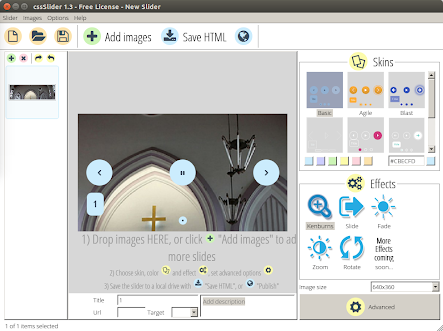
cssSlider 是一套建立 slider 特效的商用軟體,特別之處在於,它不需要 jQuery 就能做到跨瀏覽器的支援,目前可在 Windows 和 Mac 桌面環境安裝使用,Linux 環境可以透過 Wine 執行,即使不懂程式碼,使用者大抵就會自行修改設定。

$ wine .wine/drive_c/cssSlider/cssSlider.exe

事先要準備好數張圖檔,尺寸最好一致。

載入的圖檔,預設會套用 Skin 和 Effect。

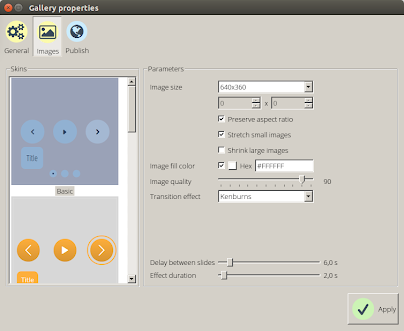
更詳細的設定,包括是否自動撥放、底色選擇、特效微調等。

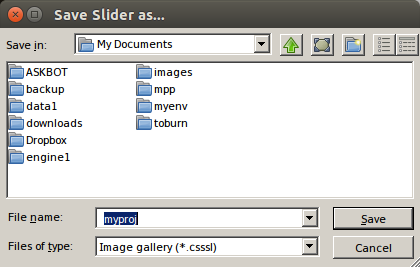
存成專案後,日後可讀取修改,假設專案命名為 myproj 的話,可發現目錄裡會建立 myproj.csssl 檔案,內容是 XML 格式。

cssSlider
+ data1
  + images
    + 1.jpg
    + 2.jpg
    + 3.jpg
    + 4.jpg
    + 5.jpg
    + 6.jpg
  + tooltips
    + 1.jpg
    + 2.jpg
    + 3.jpg
    + 4.jpg
    + 5.jpg
    + 6.jpg
+ engine1
  + basiccontrols.eot
  + basiccontrols.svg
  + basiccontrols.ttf
  + basiccontrols.woff
  + ie.css
  + ie.js
  + style.css

2014/09/19

Ubuntu Client for Google Drive

Grive is the command-line tool, while Grive Tools give you the UI for setup. See http://www.thefanclub.co.za/how-to/ubuntu-google-drive-client-grive-and-grive-tools and http://www.lbreda.com/grive/installation http://www.webupd8.org/2012/05/grive-open-source-google-drive-client.html for reference. add-apt-repository is provided by the software-properties-common package.

sudo add-apt-repository ppa:nilarimogard/webupd8
sudo apt-get update
sudo apt-get install grive

sudo add-apt-repository ppa:thefanclub/grive-tools
sudo apt-get update
sudo apt-get install grive-tools

For command line environment, first create the folder for sync, run "grive -a" in that folder and follow the link to get authenticate code. Paste the code and the data will sync. Use cron job for "automatic sync".

2014/06/12

ElasticSearch on Ubuntu

剛裝完 Ubuntu 14.04 來試 ElasticSearch,下載 elasticsearch-1.2.1.deb 後,安裝過程會建立 elasticsearch 系統帳號,啟動指令是 sudo service elasticsearch start,想要在 bootup 啟動,要執行 sudo update-rc.d elasticsearch defaults 95 10。

接著試裝 logstash_1.4.1-1-bd507eb_all.deb 遇到下列問題,雖然這東西未必需要安裝:

dpkg: dependency problems prevent configuration of logstash:
logstash depends on java7-runtime-headless | java6-runtime-headless | j2re1.7; however:
Package java7-runtime-headless is not installed.
Package java6-runtime-headless is not installed.
Package j2re1.7 is not installed.

意思是要從 java6 或 java7 選一個來裝,參考文件 [1] [2] 提到 openjdk-7-jre-headless,照提示要用 apt-get -f install 才搞定。想要測試是否正確啟動:

$ curl http://localhost:9200
{
  "status" : 200,
  "name" : "Runner",
  "version" : {
    "number" : "1.2.1",
    "build_hash" : "6c95b759f9e7ef0f8e17f77d850da43ce8a4b364",
    "build_timestamp" : "2014-06-03T15:02:52Z",
    "build_snapshot" : false,
    "lucene_version" : "4.8"
  },
  "tagline" : "You Know, for Search"
}

2014/04/10

Plone + WebDAV Client

    Plone WebDAV Windows XP

    • Step-By-Step
      • Click Start, My Network Places
      • In the left task bar click "Add a network place"
      1. Once in the "Add Network Place Wizard"
      2. Click Next
      3. Select "Choose another network location" and click Next
      4. Enter "https://plone.uconn.edu:328/" into the "Internet or network address" field.
      5. When prompted for Username and Password provide your NetID and its Password and then click OK
      6. If successful you will be asked to name the network connection, this can be anything you want but normally you should leave it as plone.uconn.edu
      7. Lastly select "Open this network place when I click Finish." and proceed to click Finish
      • Warning: You may need to re-enter your NetID and Password as we do not store it for your safety
      • Once open, navigate to the Members folder and then open the folder with your Name or NetID.
      • You can now edit, add, and remove files in your Plone folder.

    Plone WebDAV Ubuntu

    • Step-By-Step - Note: Tutorial targets default interface, other interfaces are supported but GNOME/Nautilus is described below
      • In the top bar Click Places, "Connect to Server..."
      • Once in the "Connect to Server" window
        • Set "Service type" to "Secure WebDAV (HTTPS)"
        • Set "Server" to "plone.uconn.edu"
        • Set "Port" to "328"
        • Set "User Name" to be your NetID
        • Optionally
          • Set "Folder: to be "Members/NETID" where NETID is your NetID
          • Check "Add bookmark", Give a name to the bookmark.
        • Once done, Click Connect
        • You will now be prompted for your Kerberos Login
          • In the "Password" field enter your NetID password
          • For security leave "Forget password immediately" selected
          • Click Connect
      • Once open, navigate to the Members folder and then open the folder with your Name or NetID.
        • If you completed the optional steps this will not be needed
      • You can now edit, add, and remove files in your Plone folder.

    Plone WebDAV OS X

    • Step-By-Step - Note: Do not connect through the finder, the way apple stores files is different than plone and will cause problems inside your plone home folder
      • Download Cyberduck from Cyberduck.ch or click Here for a recent version
      • Unzip Cyberduck and move the app into your Applications folder
      • Launch Cyberduck, Once open
        • Click "Open Connection" in the upper left corner
        • from the drop down select "WebDAV (HTTP/SSL)"
        • Set "Server" to "plone.uconn.edu"
        • Set "Port" to "328"
        • Set "Username" to your NetID
        • Set "Password" to your NetID password
        • Click Connect
        • Once Connected navigate to the Members folder and then open the folder with your Name or NetID.
        • From here you can edit, add, and remove files in your Plone folder.
          • Simply treat the Cyberduck window like a finder window for dragging and dropping.
          • If you are going to edit live in Plone make sure you are using the edit button in the top bar.

    Plone WebDAV Windows 7

    • Step-By-Step - Note: Do not connect through Windows Explorer, Windows 7 has changed the way it handles WebDav authentication and can have issues connecting depending on the site you are connecting to.  
      • Download Cyberduck from Cyberduck.ch or click Here for a recent version
      • Install Cyberduck
      • Launch Cyberduck, Once open
        • Click "Open Connection" in the upper left corner
        • From the drop down select "WebDAV (HTTP/SSL)"
        • Set "Server" to "plone.uconn.edu"
        • Set "Port" to "328"
        • Set "Username" to your NetID
        • Set "Password" to your NetID password
        • Click Connect
        • Once Connected navigate to the Members folder and then open the folder with your Name or NetID.
        • From here you can edit, add, and remove files in your Plone folder.
          • Simply treat the Cyberduck window like a Windows Explorer window for dragging and dropping.
          • If you are going to edit live in Plone make sure you are using the edit button in the top bar.

2014/04/08

FTP Server Testing

http://ftptest.net/ provides useful debug info to help figuring out FTP server configuration issue.

Check passive mode if your FTP server running within a firewall. Pure-FTPd PassivePortRange

2014/03/28

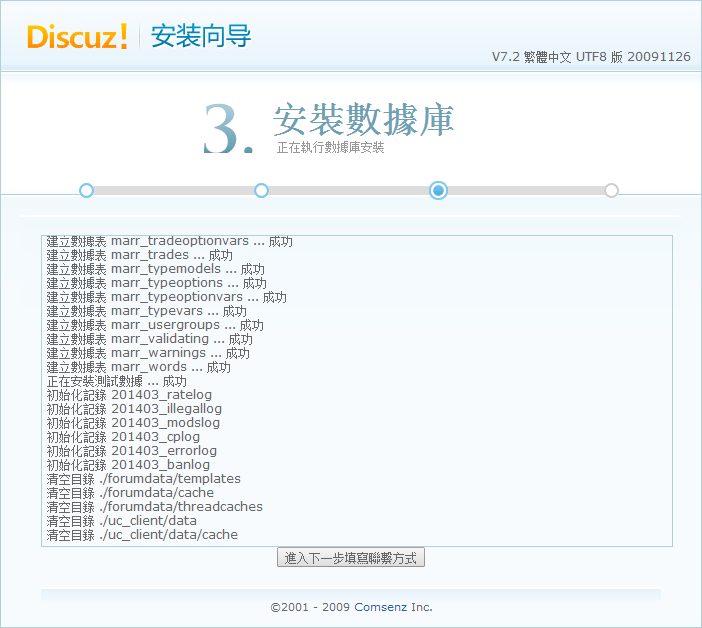
discuz Installation

$ sudo apt-get install php5-cli php5-mysql php5-fpm
$ sudo apt-get install mysql-server mysql-client
$ mysql -u root -p mysql
mysql> CREATE USER 'marr'@'localhost' IDENTIFIED BY 'mysecret';
mysql> GRANT ALL PRIVILEGES ON *.* TO 'marr'@'localhost' WITH GRANT OPTION;
mysql> SHOW GRANTS FOR 'marr'@'localhost';

$ sudo apt-get install nginx nginx-common nginx-full
$ sudo vim /etc/nginx/sites-available/default
$ sudo service nginx restart
$ cd /usr/share/nginx/www
$ sudo mkdir discuz
$ suco chown marr.marr discuz
$ cd discuz
$ unzip Discuz_7.2_FULL_TC_UTF8.zip

visit http://mysite.com/discuz/upload/install/

# in case of folder permission
$ sudo chown www-data.www-data templates

Configuring and Optimizing php-fpm and Nginx PHP-FPM Eating Memory

update-rc.d: warning: php5-fpm stop runlevel arguments (0 1 6) do not match LSB Default-Stop values (none)

2014/03/11

Tools and Utilities

Mirror Part of The Site

$ wget --mirror --page-requisites --adjust-extension
 --no-parent --convert-links
 --directory-prefix=my_folder http://mysite.com/my_url

2012/07/06

System-wide Environment Variables

Ubuntu 的環境變數想要在系統層面進行設定,建議是編輯 /etc/environment 檔案,最好不要寫在 /etc/profile 和 /etc/bash.bashrc 檔案裡。

# dpkg-reconfigure locales

這樣可以產生 /etc/environment 檔案,舉例來說,再把 LC_COLLATE=POSIX 寫進去,就可以指定我想要的檔案排序方式。

2012/05/11

Ubuntu Sudo NOPASSWD

根據 https://help.ubuntu.com/community/Sudoers 的說明,像

marr    ALL=(ALL) NOPASSWD: ALL

這樣的設定值,要放在

%admin ALL = (ALL) ALL

後面,順序不對是無效的。

2012/05/07

Maragda: Running Linux from CD

zh-tw version of http://www.linuxjournal.com/article/4396

這個計畫在這邊描述更進一步的證明Linux是一個強有力且多樣化的系統。

我的大學中有幾台推車,上面放了電腦和錄放影機,並且同時接上一台投影機。它們有太多的使用者所以很難確保它們能夠正常的運作。這尤其在電腦上是如此;你永遠無法確定可以在硬碟上找到甚麼軟體。我決定利用投影機來介紹程式設計課程,透過它來展示給我的學生這些C的程  當然我想要使用Linux和它的相關程式設計工具來讓我的學生學習並讓他們知道Windows並非唯一的選擇。我的第一個想法是嘗試將Linux安裝在Iomega Zip 250MB 並列埠版本的機器上。接著幾天的工作後我達到這個目標。它需要一張磁片來開機,而且運作的速度還不錯。接著我重複了這樣的動作,這回我將Linux安裝到IDE介面的硬碟中,並且將其透過並列埠的外接盒接到並列埠上來安裝。這樣的方式消除了250MB的磁碟空間限制而且加速了Linux的執行速度。在這些的工作中我學習到,我自問,為什麼不在光碟上執行Linux呢?這將會更  此外,學生們也可以藉此機會開始學習如何使用Linux而不需要安裝在他們的電腦上。  最後的產品是一張可開機的光碟,所以你必須先設定讓你的BIOS可以從光碟機開機。如果你的BIOS不支援光碟開機,那有另一個解決方式:一張開機磁片也可以從光碟開啟Linux。事實上,一個軟碟機的開機映像檔也是光碟用來開機的檔案。安裝在光碟上的Linux軟體  第一種是全部安裝的。它包含了基本系統,印表機支援,X視窗系統,VGA 16及framebuffer的X伺服器,GNOME(或者你可以編輯.xinitrc並且將你喜歡的視窗管理員選擇起來),網路伺服器,編輯和排版工具(LaTeX,等等),Emacs,開發工具(make,egcs,等等),DOS/Windows的連結工具,郵件,WWW和新聞群組工具,和其他的套件諸如rhide,ssh支援和  第二個系列,我稱為Maragda教學版,僅安裝了部分的套件,有基本系統和X(使用fvwm2),包含完整的開發工具和其他的工具例如gv和rhide。完整版的Maragda需要至少64MB的記憶體,而Maragda教學版則需要32MB。也有第二種的完全版Maragda只需要32MB的記憶體,但不包含部分的工具例如Emacs或Netscape這類需要更多記憶體的軟體。在這兩個狀況中,都使用了相同的核心。它的版本是2.2.14,而且它支援了網路,framebuffer裝置,和loop-  一個問題是任何的系統都必須具備可攜性,以便來適應不同的硬體。最低限度下,滑鼠和X視窗必須能夠設定,接著是密碼,網路特性和其它方面。在Maragda的狀況中,它必須記得沒有辦法殘存設定,因為光碟是唯讀的。完整版的Maragda被預設支援PS2的滑鼠,及32bit的framebuffer顯示模式。網路使用3c59x(一張3Com的網路卡)的模組,並且識別為maragda.gnd.upv.es(192.168.0.1)。完整的Maragda有一個開放的方式讓你決定是否自行來設定。只要在主系統被掛載完成後,開機的程序會暫停並且要求一張格式化成ext2的磁片,在  如果你對這些檔案或者其他設定檔都不瞭解的話,那麼仍然有一點希望。你必須要繼續開機的程序並且用root登入。這張光碟會被掛載在/mnt/cdrom。在/mnt/cdrom/system/config-touch你會發現兩個描述檔(scripts)。執行Touch_all會建立系統中的所有檔案。接著執行你需要的設定工具(setup,xconfiturator或X中的control-panel)。最後執行Find_newer。它會將所有設定工具產生的設定檔找到,並且複製一份叫config的檔案到每一相對應的目錄./config。將這些檔案放到軟碟中。Maragda教學版限制更多。它不會向你要求放入  二、將所有的原始程式分別放至兩個大檔案上,ROOT.FS及WHOLE.FS;他們都應該要裝  三、開發一個開機的機制來自動偵測光碟機並且能夠找到在光碟上的ROOT.FS。接著他應該要能夠將ROOT.FS載入成為虛擬磁碟中(Ram Disk)並且準備將此當成根檔案系統(roo  你可以在光碟上找到這些目錄(和doc目錄在一起)。它們是我工作目錄的複製,你可以從那裡找到所有需要用來建立Maragda的東西。你必須將它們複製到一個至少有1GB空間的磁碟中。我必須要先指出,或許有些設備檔(在/dev下面的檔案)可能會在從ext2的檔案系統複製到光碟檔案系統(iso9660)的過程中變得不正確。這樣的狀況下,你必須要將這些檔案再從你的系統中置換成正確的。現在,我們來開始描繪這些有關建立的程序和這些描述檔的目的及主要的設定檔。如果你決定要自行建立一個屬於你自己的類Maragda系統,你應  圖一顯示主要的開機步驟。這裡主要的目的是要建立一張開機磁片好整合進入光碟中,讓光碟可以開機。開機磁片上的啟動程式我們選用syslinux。它可以用來將Linux從一個DOS格式的磁片中啟動,其中包含核心及壓縮過的啟始虛擬磁碟(initial RAM disk),此虛擬磁碟內容包含根檔案系統。所以我們需要一個核心及其可動態載入的模組。(目前只需要核心)。我將不會解釋如何編譯核心,但是將會告知哪些部分需要標記起來以便得到該有的支(你可以在doc/developer.html中找到我的核心設定檔)現在我們需要建立啟始虛擬磁碟(initrd),將根檔案系統在第一階段的開機中放入。最簡單的方式是從一張救援磁片中借得。但是我遵從"自己動手做"的原則。在boot/initrd這個檔案是我的虛擬記憶體的大綱。Init_initrd這個描述檔主要用來從原始程式中複製檔案。它建立目錄,複製一份裝置檔案到initrd/dev並且移植部分到initrd/bin。Initrd的大小一定要保持很小的狀態,所以你應該只留必要的執行檔在initrd/bin中。當你完成後,執行Make_initrd_fs_gz。它會建立一個檔案(Minix 的格式),將檔案複製到boot/initrd並且壓縮起來。現在你有了核心和一個啟始虛擬磁碟。接著,你應該利用syslinux產生一個可開機的磁片。Syslinux的設定檔SYSLINappend initrd=initrd.gz ramdisk_size=20480 vga=0x315這是指示開機啟動程式去載入啟始虛擬磁碟並且將兩個參數傳給核心告知它需要的虛擬磁碟大小和framebuffer的顯示模式。這個虛擬磁碟的大小應該根據ROOT.FS的大小來設定。最後,這張開機磁片要透過Write_syslinux_boot_floppy這個描述檔來建立。它會解開這個raw映像檔到磁片上並準備整合進光碟中。在這裡意義最大的是boot/initrd/linuxrc這個檔案(/linuxrc在啟始虛擬磁碟上),因為這個描述檔會再一開機時就被執行到。它會在這個階段執行主要的工作:'D 它會尋'D 最後,如果找到.FS的檔案它會將cdrom_dev寫入。這個檔案會在第二階段的開機過程中參考到。如果每件事情都完成後,開機的程序會繼續來執行在新的根檔案系統上的init。舊  這些檔案室透過在系統工作目錄的描述檔來建立,並且所有檔案都可以在那被找到,原始檔也在那。Cp_root是用來建立ROOT.FS,當然Cp_whole會建立WHOLE.FS。這兩個描述檔使用Make_fs來在一個檔案中建立檔案系統。ROOT.FS會包含那些需要寫入且無法存在於read-only的檔案系統的檔案及目錄。在ROOT.FS存在於虛擬磁碟時也是可以寫入的。困難的是如何找到真正需要放在ROOT.FS的東西。在幾次的嘗試後,我決定複製至少下列的目錄:bin,sb  對於那些沒有複製到的,會建立符號連結,指向WHOLE.FS掛載的目錄(/mnt/whole_fs)。此外,執行檔和函示庫都是unstripped(移除符號)來減少空間。而ROOT.FS的設定檔都在system/config。一當ROOT.FS從原始程式檔中被展開,system/config的檔案會寫入覆'D /etc/X11/X和/etc/X11/XF86Config用來設定X 'D /etc/hosts*和/etc/sysconfig/netwo'D /etc/rc.d/init.d/*,用來控制啟始的程序特別重要的是在system/config/etc/rc.d/rc.sysinit這個描述檔。它是透過init來執行的(第二階段的開機)。我修補過這個檔案為了完整的Maragda系統。它增加了在Maragda中/etc/fstab的幾行,為了用來映射光碟在哪,及WHOLE.FS在哪。記得這是透過在/initrd/cdrom_dev的linuxrc(第一階段的開機)來公布的  當然為了測試你的救援系統,你不需錄製成光碟。它應該可以簡單的透過LILO來開機,  當你已經學到,原始檔安裝程序是一個目錄,包含有完整安裝好的Linux系統。它可以是用來複製給ROOT.FS和WHOLE.FS檔案系統的原始程式,甚至可以用來安裝到硬碟或者到250MB的zip磁碟。Prepare_install(在系統工作目錄)描述檔是用來設定接收RPM套件。接著,你可以使用Install_rpm來將那些套件安裝到原始碼安裝的目錄。Install_rpm會從Red Hat 6.2的光碟中安裝套件(或者從任何地方,如果你修改它的話)。被安裝的套件名稱可以在system/RPM_lists找到。例如,base_inst會列出基本系統安裝用的套件。我是透過在Red Hat光碟上RedHat/base/comps的檔案來建立這個列表。如果你照著正確的順序來安裝套件(如在Install_rpm中顯示的),那他們在安裝中應該不會有問題。Install_rpm也會報告出哪些套件沒有被安裝。在base_inst的狀況中,它會建立一個base_inst_not_installed。只有部分的rpm會產生問題。但是如果你告訴Install_rpm將base_inst_not_installed中的套件安裝進去,最後還是會被安裝進去。你可以在http://navel.eugan.upv.es/maragda/doc找到文件。

2012/03/06

Configure Plone and Joomla RSS Feeds

這算是 Plone User's Joomla Adventure 第二集,比較兩者設定 RSS Feed 的方法。

Plone 的 RSS 設定對象是 collection,在網址後面加上 /RSS 就行,例子像是 http://localhost/news/aggregator/RSS,搭配 portal_actions 還可以自動產生 RSS link/icon。

Joomla 的設定對象通常是 category 和 section,也可以首頁之類的任何網址,在網址後面加上 ?format=feed&type=rss 就行,例子像是 http://localhost/index.php?format=feed&type=rss 或 http://localhost/index.php?option=com_content&view=category&id=48&format=feed&type=rss。

2012/02/09

Interactive Programming Learning

在 http://ask.inside.com.tw/ 看到「如何教國一的弟弟寫程式」,順便找到幾個線上資源:

  • http://www.codecademy.com/
  • http://tryruby.org/
  • http://www.trypython.org/

2012/02/03

Canonical URL Links

如果網站裡存在不同網址,卻回傳同樣 (或類似) 的內容,考慮將這些網頁"整併"掉時,一項稱為 Canonical Link Element 的方式,值得參考。

2012/01/17

Plone User's Joomla Adventure

我下載的說明文件是 http://downloads.joomlacode.org/docmanfileversion/1/6/0/16087/1.5_Installation_Manual_version_0.4.pdf 寫得很詳細,像是在讀論文,常讓我有找不到重點的感覺。作業系統環境是 CentOS,第一個卡關的地方,新版的 PHP 把 MySQL 的支援設定,改到 php.ini 檔案裡,這在文件裡是寫成 You must ensure that you have the MySQL, XML, and Zlib modules functionality enabled within your Apache Web server installation. These are controlled within the php.ini file. 平常太少跟 Apache 打交道,所以遇到 configuration.php Writable 的問題,把目錄擁有者改成 apache.apache 就行了。 進入管理介面後,沒馬上搞懂的是: extension, module, plugin 有何差別,對於 Category 也不清楚。

以上是初體驗的心得。

2012/01/03

Vim Auto-indenting for Code Paste

編輯程式碼時,雞婆聰明的 Vim 會自動縮排,這時可以用 :set paste 來處理,更多資訊可參考 http://vim.wikia.com/wiki/VimTip906

2011/12/10

Firewall Port Config

想要新增能通過 firewall 的 port 號碼,在 Mandriva 環境常用 drakconf,在 CentOS 環境,了解詳細的設定方式之餘,也可以用 system-config-securitylevel 來直接設定。在 Ubuntu 環境可用 ufw

2011/12/06

PHP is Object Capable

Of course, PHP is not Object Oriented. Luckily, most software written in PHP does not care much about objects, I guess.